
Documentation
Requirements
Everything CorePanel expects before and during installation. Read this once and the install itself takes about five minutes. The other guides cover each part of the panel once it is running.
1. The panel server
CorePanel runs on its own machine, next to your hypervisors. A small VM is plenty to start.
| Operating system | Fresh Debian 13 (the installer supports nothing else, on purpose) |
|---|---|
| Resources | 2 vCPU, 2 GB RAM, 10 GB disk recommended minimum |
| Access | Root shell on a machine dedicated to the panel |
| Domain | A domain or subdomain (for example panel.yourbrand.com) with its A record pointed at the server before you install. The TLS certificate is issued during installation |
| Reachability | Ports 80 and 443 reachable from the internet, and outbound internet for packages and certificates |
| Clock | The server's clock must be correct. The installer stops if it is more than five minutes off |
The installer asks two questions, your panel domain and the admin e-mail address, and handles the rest: packages, database, TLS with automatic renewal, services, the self-update system and the admin account. The admin password is shown once at the end and stored nowhere.
The install command is personal: create an account, start the free 14-day trial or order a licence, and copy the one-command install from your dashboard. The command carries a short-lived token that activates your licence automatically.
2. Proxmox VE
| Version | Proxmox VE 8 or 9 (validated on 9.2). Private networks use Proxmox SDN. Importing servers from a disk image needs 8.2 or newer |
|---|---|
| Certificates | Self-signed is fine. CorePanel remembers each node's certificate when it first connects, and asks you before it trusts a changed one |
| Exposure | Nodes do not need to be publicly reachable. The panel needs to reach port 8006 on them. Nothing else does, consoles included |
| Kernel module | br_netfilter must be loaded on every node. Without it, network filtering silently enforces nothing |
| Time zone | Set each node's real time zone in Proxmox (node → System → Time). Backup windows and disaster recovery start on the node's own clock |
Some setups already have the kernel module loaded, so check first, on each node:
$ lsmod | grep br_netfilterIf that prints a line containing br_netfilter, the module
is loaded and you can skip this step. If it prints nothing, run these two
commands. The first loads the module now, the second loads it on every
reboot:
$ modprobe br_netfilter
$ echo br_netfilter >> /etc/modules
The node page in CorePanel tells you if a node's firewall is not actually filtering, so a missing module never goes unnoticed.
3. The API token
CorePanel talks to your cluster through one API token, created at Datacenter → Permissions → API Tokens. Tokens are cluster-wide in Proxmox, so this is one credential per cluster, not one per node.
That has a convenient consequence: you add a connection, not a node. A connection is one cluster or one standalone host. Give the panel a single reachable host address and it discovers and adds every member node automatically. Added a node to the cluster later? Open the connection under Admin → Connections and press Sync nodes.
Creating the token:
- Create a dedicated user, for example
corepanel@pve(or useroot@pam). - Datacenter → Permissions → API Tokens → Add, with the user above and a token id such as
panel. With Privilege Separation on, grant the token itself the role below. With it off, the token inherits the user's permissions. - Grant the Administrator role on path
/with propagation. CorePanel builds servers, manages firewalls and storage, reads the firewall log to confirm filtering works, and creates its own restricted account for consoles. - Copy the secret straight away. Proxmox shows it once.
If the token cannot create users, everything still works except browser consoles, until you widen the token and refresh the connection.
4. Backups
Backups work out of the box on the nodes' own storage. For backups that survive a node, add a Proxmox Backup Server: CorePanel can detect one your cluster already uses, or set one up on every cluster for you. The Backups guide covers backup servers, backup plans, restores and disaster recovery.
5. Operating systems
| Linux | Cloud images with cloud-init (Debian, Ubuntu, AlmaLinux, Rocky, Fedora and similar). CorePanel sets users, passwords, SSH keys, addresses and DNS through cloud-init |
|---|---|
| Windows | Windows Server images with cloudbase-init, the Windows counterpart of cloud-init |
| Guest agent | The QEMU guest agent installed in every image. It powers live address changes, time zones, scripts, disk usage and private networks inside running servers |
| Placement | A template must be present on a node for servers to be built there. The panel shows which nodes have which templates |
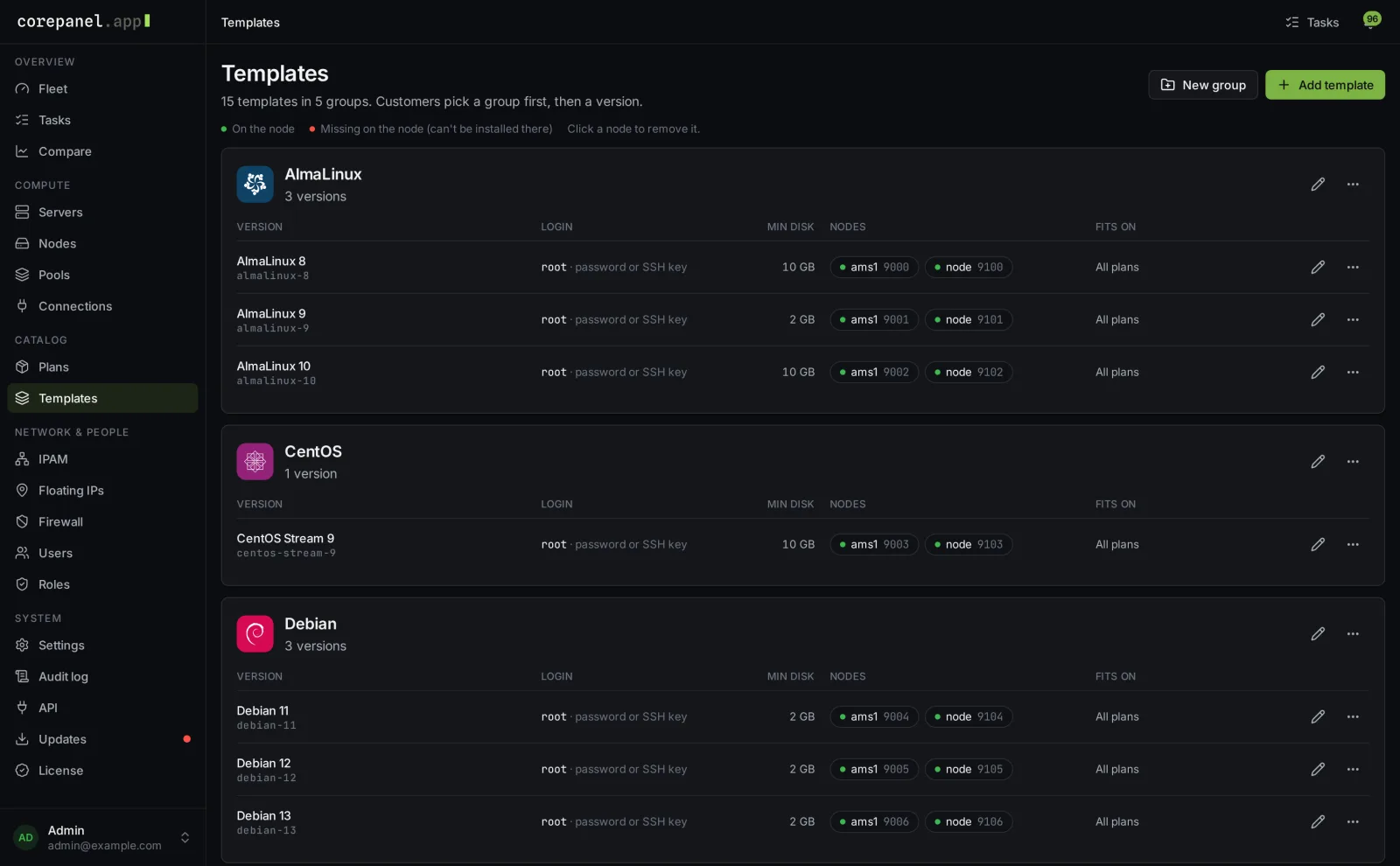
See Operating systems for templates, Windows, ISO installs, rescue mode and bringing in existing servers.
6. Networking
| Public addresses | IPv4 ranges routed to your nodes' bridge, and IPv6 ranges if you offer them, defined as pools in CorePanel |
|---|---|
| Bridge | vmbr0 by default. Each pool can use its own bridge and VLAN |
| Private networks | Optional. Uses Proxmox SDN with VLAN, a single hypervisor, or VXLAN between hypervisors. Set up per location in the panel |

The Networking guide covers pools, private networks, floating IPs, reverse DNS and firewalls.
7. Billing
Billing is optional and pluggable. WHMCS 8 works with the included module, and any other billing platform or storefront can run the full server lifecycle through the same API. See Billing and API.
8. Ports at a glance
| Internet → panel | 80, 443 (customers, staff, consoles and live updates all ride the panel domain) |
|---|---|
| Panel → nodes | 8006 (Proxmox API. Consoles are relayed by the panel over the same path) |
| Nodes → backup server | 8007 (Proxmox Backup Server traffic) |
| Node ↔ node | UDP 4789, only for VXLAN private networks |
| Panel → internet | HTTPS to corepanel.app for your licence and updates, to your DNS provider if you use reverse DNS, and your mail server for e-mail |
| Internet → nodes | Nothing required. Keep them private |