
Documentation
Backups
Decide once how much history each product keeps. CorePanel runs the schedule, thins out old backups and gives customers a restore button, while disaster recovery quietly covers you.
Where backups go
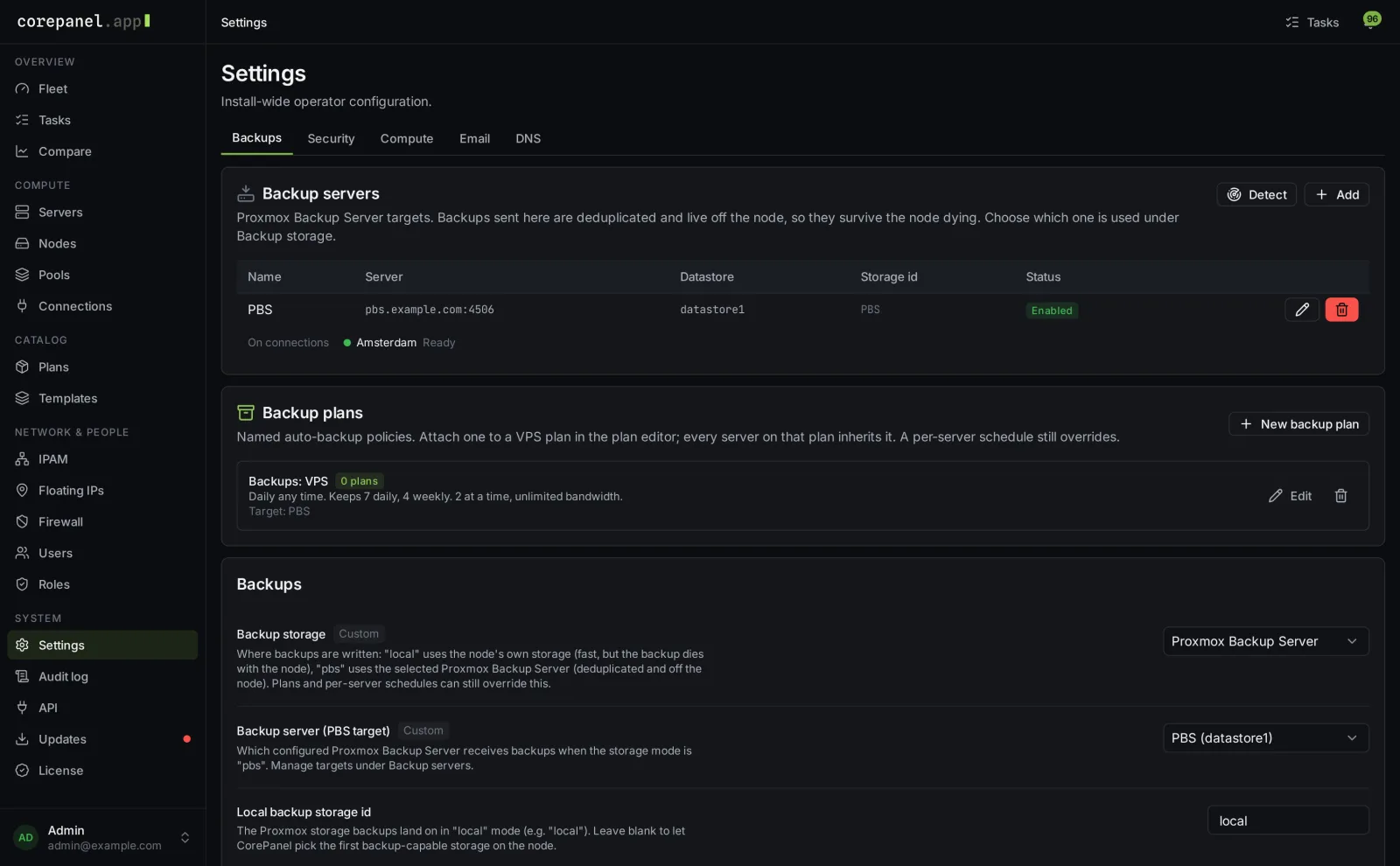
Out of the box, backups land on the nodes' own storage. For backups that survive a node, add a Proxmox Backup Server under Admin → Settings → Backups → Backup servers:
- Detect finds a backup server your clusters already use and adopts it. Proxmox keeps the credentials.
- Add registers a new one with its host, datastore and credentials. CorePanel sets it up on every cluster and only saves it once Proxmox accepts it.
Clusters you add later get your backup servers automatically. Each server shows on which connections it is ready. Removing a backup server from the panel never deletes the backups already on it.
Sharing a datastore with another system? Give CorePanel its own namespace on the datastore. Backups are grouped by VM ID, so two systems in one namespace collide on reused IDs. With separate namespaces they stay apart while deduplication still spans the whole datastore.
Backup plans
A backup plan is a named policy you attach to products. Create one under Admin → Settings → Backups → Backup plans → New backup plan:
| Keep | How many daily, weekly, monthly and yearly backups to keep. Older ones are removed for you |
|---|---|
| How often | From every 6 hours to every 30 days |
| Starts at | The hour backups begin, on each node's own clock, so 04:00 means 04:00 wherever the server runs |
| At a time | How many servers back up at once, so a node is never flooded |
| Bandwidth limit | How hard backups may push the network |
Attach the plan to a product under Admin → Plans → (a plan) → Protection → Automatic backups. Every server on that product is backed up from then on. Customers see it on their Backups tab, for example Automatic backups on · keeps 7 daily and 4 weekly backups · next tomorrow 04:00, and automatic backups never count against their own backup slots.
Per-server schedules
The Auto backups button on a server's Backups tab sets a schedule for that one server, which replaces its backup plan. Staff can always use it. Customers get it when their plan has the Scheduled backups feature. A switched-off schedule takes a server out of automatic backups altogether, and Remove override puts it back on the plan.
Manual backups and snapshots
- Each plan sets how many backups, protected backups and snapshots a customer may keep, under Protection in the plan editor.
- Customers take a backup with or without downtime and can protect it from deletion.
- Snapshots need storage that supports them, such as LVM-thin, ZFS, Ceph or qcow2 disks.
- Cooldowns and whether customers may back up or restore at all are set under Admin → Settings → Backups.
Restoring
A whole server
Customers restore a backup from their Backups tab after typing the server's name to confirm. The disk and settings come back from the backup, while the server keeps its current addresses, size, firewall and private networks.
A single file
Browse files opens a backup, so customers can download one file or a whole folder without rolling the server back. It works for backups on a Proxmox Backup Server and can be switched off under Admin → Settings → Backups, where you also set the largest download and the time limit. Every download is recorded.
Disaster recovery
Disaster recovery is your own safety net, separate from customer backups. It backs up every server on a node on the node's own schedule, even when the panel is down. Customers never see these backups.
- Open a node under Admin → Nodes and find the Disaster recovery card.
- Choose a backup server, a cadence from daily to monthly, a start time on the node's clock and how many backups to keep per server.
- Press Back up now to try it straight away.
If a node is lost, Recover this node restores its servers onto any healthy node in the same cluster, one by one, with a warning if a target looks tight on room. It uses the newest backup of each server on that backup server, so with your backup plans on the same backup server it also picks up the latest nightly backups.
After a server is deleted
Keep backups after termination (days) under Admin → Settings → Backups decides how long a deleted server's backups stay, in case a customer comes back. The default is 7 days. Set 0 to remove them with the server.