
Documentation
Running the panel
Clusters, capacity, staff and updates. The things you do every week, and the few you only need when something goes wrong.
Connections and nodes
Add a cluster under Admin → Connections with one reachable host address and the API token from Requirements. Every node in the cluster is discovered and added. Sync nodes picks up nodes added later, and Location name customers see sets the name that appears in your customers' portal.
If a node's certificate changes, CorePanel stops and asks you to accept the new one before it talks to that node again.
Capacity
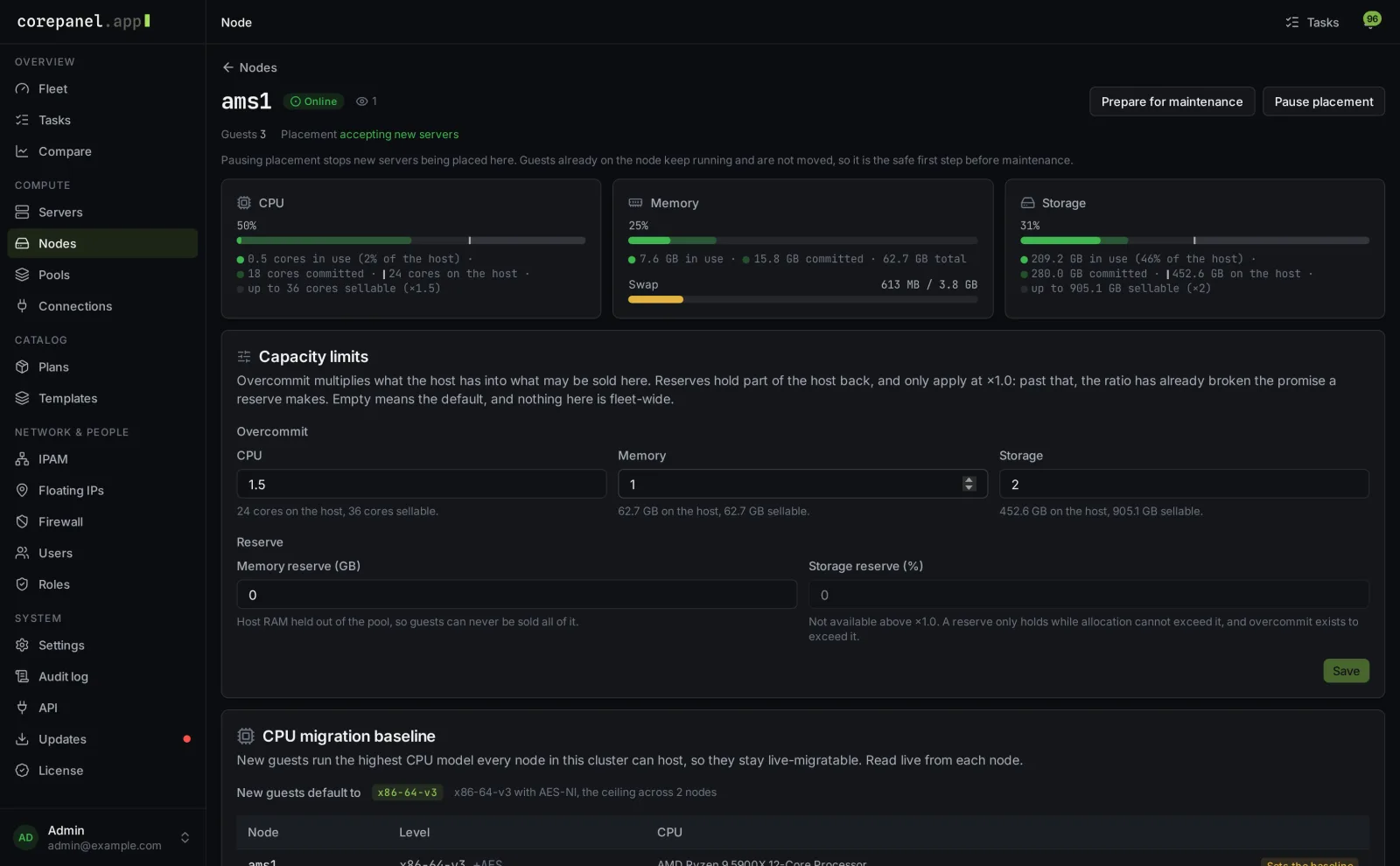
Each node has a Capacity limits card. Set how far to oversell CPU, memory and storage on that node, and how much memory and storage to hold back for the host. The gauges show what is in use, what is sold and what the hardware really has, side by side.
Maintenance and migration
- Pause placement stops new servers landing on a node, while the ones on it keep running.
- Prepare for maintenance pauses placement and moves every running server to other nodes. Bring them back returns them afterwards.
- New servers run on the newest CPU model every node in the cluster supports, so they can always move, even across hardware generations.
Staff and roles
Invite colleagues under Admin → Users and give them roles. Roles under Admin → Roles are built from permissions such as power actions, consoles, reinstalls, IP management or billing settings, and a new account can do nothing until you decide otherwise. Turn on Require two-factor authentication for staff under Admin → Settings → Security to make a second factor mandatory.
View as customer
Support can see the panel exactly as a customer does, with View as on the Users page or View as customer on a server. It asks for the staff member's own password, a second factor and a reason, lasts 30 minutes, and only allows changes to servers and networking. Everything done is recorded under the staff member, and never shows in the customer's own activity.
Audit log
Admin → Audit log records who did what and when, with the before and after of every change, filterable by person, category and target. It is append-only.
E-mail and alerts
Set your mail server under Admin → Settings → Email and press Send test email. Staff with fleet access are then told about the things that need a person: a cluster that stops answering, a node that goes offline, an address used by the wrong server, a node whose firewall is not filtering, and new updates. The status indicator at the top of the admin area shows the state of every connection at a glance.
Updates
New versions appear under Admin → Updates with their release notes.
- Press Run pre-update checks. They confirm your licence, free disk space and that nothing is in progress.
- Press Update to and type the version number to confirm.
Every package is signature-checked, and a failed update restores itself. Revert goes back to the previous version if you need to. Open browser tabs load the new version by themselves once the update is done.
Behind Cloudflare
The panel works behind Cloudflare's proxy. Three settings matter:
- Rocket Loader off (Speed → Optimization). It rewrites how the panel's scripts load, so after an update a browser can keep showing the old screens until you press Ctrl+F5.
- SSL/TLS mode Full (strict), so the hop from Cloudflare to your panel server stays verified.
- Real visitor addresses. Follow the steps under Admin → Settings → Security → Cloudflare, otherwise the audit log and login limits see Cloudflare's addresses instead of your users'.
Node time zones
Backup plans and disaster recovery start on each node's own clock. Set a
node's time zone in the Proxmox interface (node → System → Time)
rather than only with timedatectl, so Proxmox reports it too.
CorePanel picks up the change within six hours.
When you need help
Two commands on the panel server cover the rare bad day. The first writes a support bundle with passwords and keys removed, to send us when something is wrong:
$ cd /opt/corepanel/api && sudo -u corepanel php artisan corepanel:diagnosticsThe second gets an admin back in after a lost password or second factor:
$ cd /opt/corepanel/api && sudo -u corepanel php artisan corepanel:user:password [email protected] --clear-2fa