
Documentation
Operating systems
Offer the systems your customers ask for, let them bring their own, and bring in servers you already run.
Templates
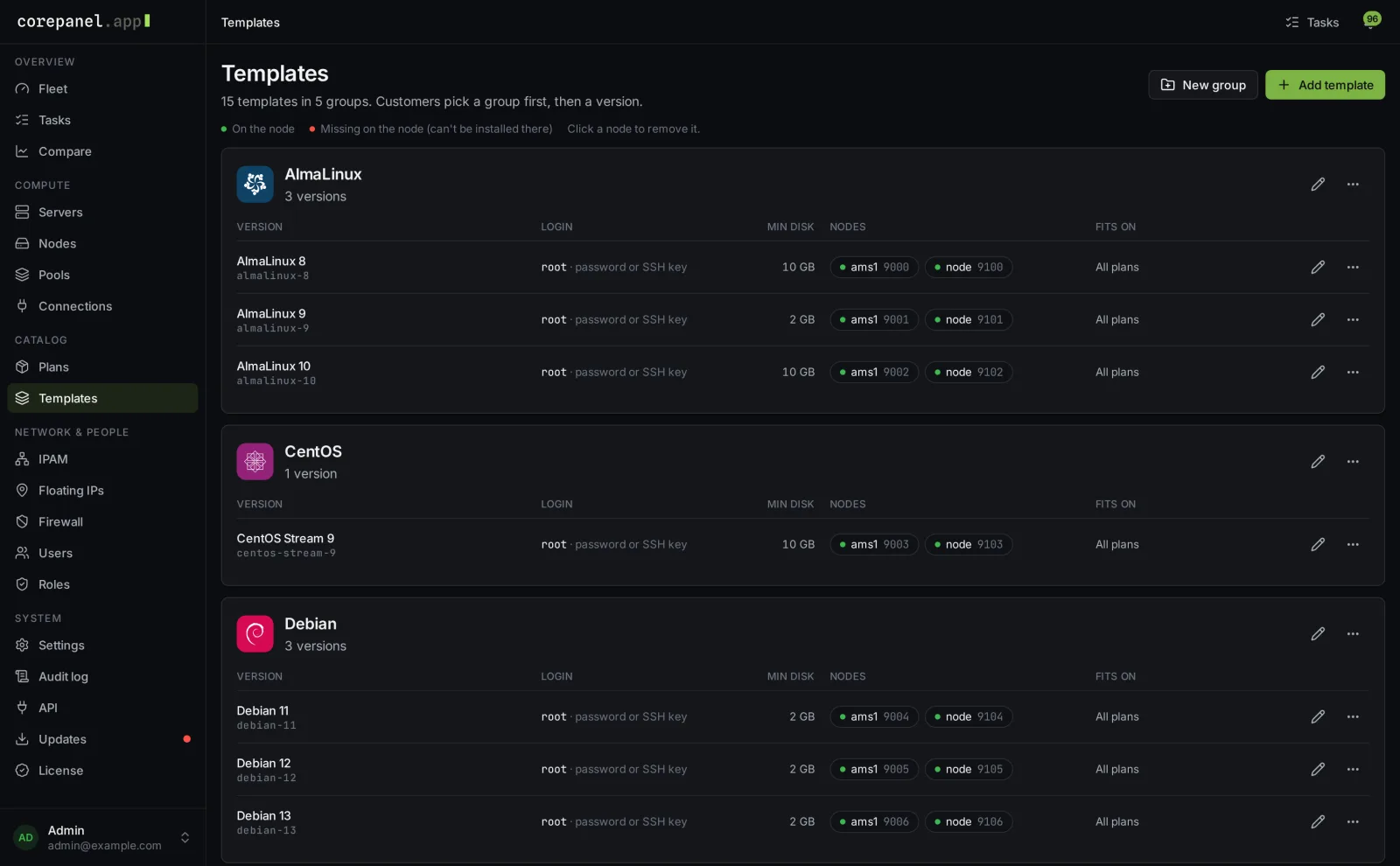
Templates are the Proxmox templates new servers are built from. Manage them under Admin → Templates:
- New group creates a family such as Debian or Windows Server. Customers see the group name, then pick a version.
- Add template lists the templates on a node live. Pick one and give it a display name, its group, the OS family and the smallest disk it needs.
- Built the same template on other nodes? Add a placement for each, so servers can be built there too.
A template only appears for plans with enough disk, and customers never see where it lives.
Linux
Use cloud images with cloud-init and the QEMU guest agent, such as the official Debian, Ubuntu, AlmaLinux or Rocky cloud images. CorePanel sets the user, password or SSH keys, addresses and DNS at first boot, and uses the guest agent for everything that happens later.
Windows
Build Windows Server templates with cloudbase-init and the
QEMU guest agent installed, then set the template's sign-in user to
Administrator. Windows servers get their password, addresses,
time zone and private networks set up automatically, just like Linux.
Sign-in and first boot
- Customers choose SSH keys, a generated password shown once, or their own password. SSH keys are only offered where the template supports them.
- A Linux server with a password and no SSH key gets password sign-in switched on, so the first login just works.
- Customers can pick a time zone. Without one, the image's own setting stays.
ISO installs
Customers who want something you don't offer can install from an ISO:
- With the plan feature Custom ISO by URL, they fetch an ISO from a link on the server's ISO tab. Their ISO library keeps the links they use often.
- You can offer ready-made images too, under Admin → Settings → Compute → ISO images.
- An ISO mounted on a running server waits for a restart from the panel.
A server installed from an ISO is the customer's own to configure. Address changes from the panel reach the network, and the panel shows the customer what to set inside the server.
Rescue mode
Set a rescue image under Admin → Settings → Compute. Customers then boot into it from the server's Settings tab to repair a system that no longer starts. Their disk is left untouched.
Scripts
Customers keep their own setup scripts under Account → Scripts and pick one when they install or reinstall a Linux server. It runs once, right after the build, and the result shows on the server's Activity tab.
Importing and adopting
Bring servers that already exist into the panel:
- Adopt: under Admin → Servers → VMs not in the panel, pick a machine on your cluster, its owner and its plan. The machine itself is not changed.
- Import: under Admin → Servers → Import, build a server from a disk image by link, or from one already on your storage. This needs Proxmox VE 8.2 or newer and a storage with the Import content type enabled.
Selling without an operating system
A server can be sold without an operating system, from the admin area or through billing. Its addresses are reserved straight away, and the customer chooses a system and installs it from their portal at first login. A reinstall later keeps the same addresses.