
Documentation
Networking
Public addresses, private networks between servers, addresses that move, reverse DNS and firewalls at two levels. Here is how to set each one up, and what your customers can then do on their own.
IP pools
Your public addresses live in pools under Admin → IPAM → New pool. A pool is one range with its gateway, the bridge it sits on and, optionally, a VLAN and the DNS resolvers servers should use.
- IPv4 or IPv6, handing out either single addresses or a whole block per server.
- Usable range and exclusions keep addresses you use elsewhere out of the pool. The gateway is never handed out.
- Location ties a pool to one cluster. Leave it on all locations to share it.
New servers take their public IPv4 address from your pools, and as many extra addresses as the plan or the order includes. Addresses come back to the pool when a server is deleted, and every change is kept in the address's history. IPv6 addresses and blocks are added to a server from its page in the admin area.
Network filtering
With filtering on, a server can only send traffic from the addresses it owns. A customer who tries to use a neighbour's address gets nowhere, and your staff are alerted.
- Each plan has a default under Admin → Plans → Network → Network filtering.
- A single server can be switched on or off from its admin page, under Network, for the rare server that must send traffic from elsewhere.
- It needs the
br_netfiltermodule on every node (see Requirements). The node page warns you if a node is not actually filtering.
Keeping servers apart
Under Admin → Settings → Security → Network isolation you decide whether customers' servers may reach each other over the public network, and whether servers may act as DHCP servers or send router advertisements. Both are off by default, and any single server can follow the default or override it.
On SDN bridges you can additionally isolate servers at the switch level within each node.
Private networks
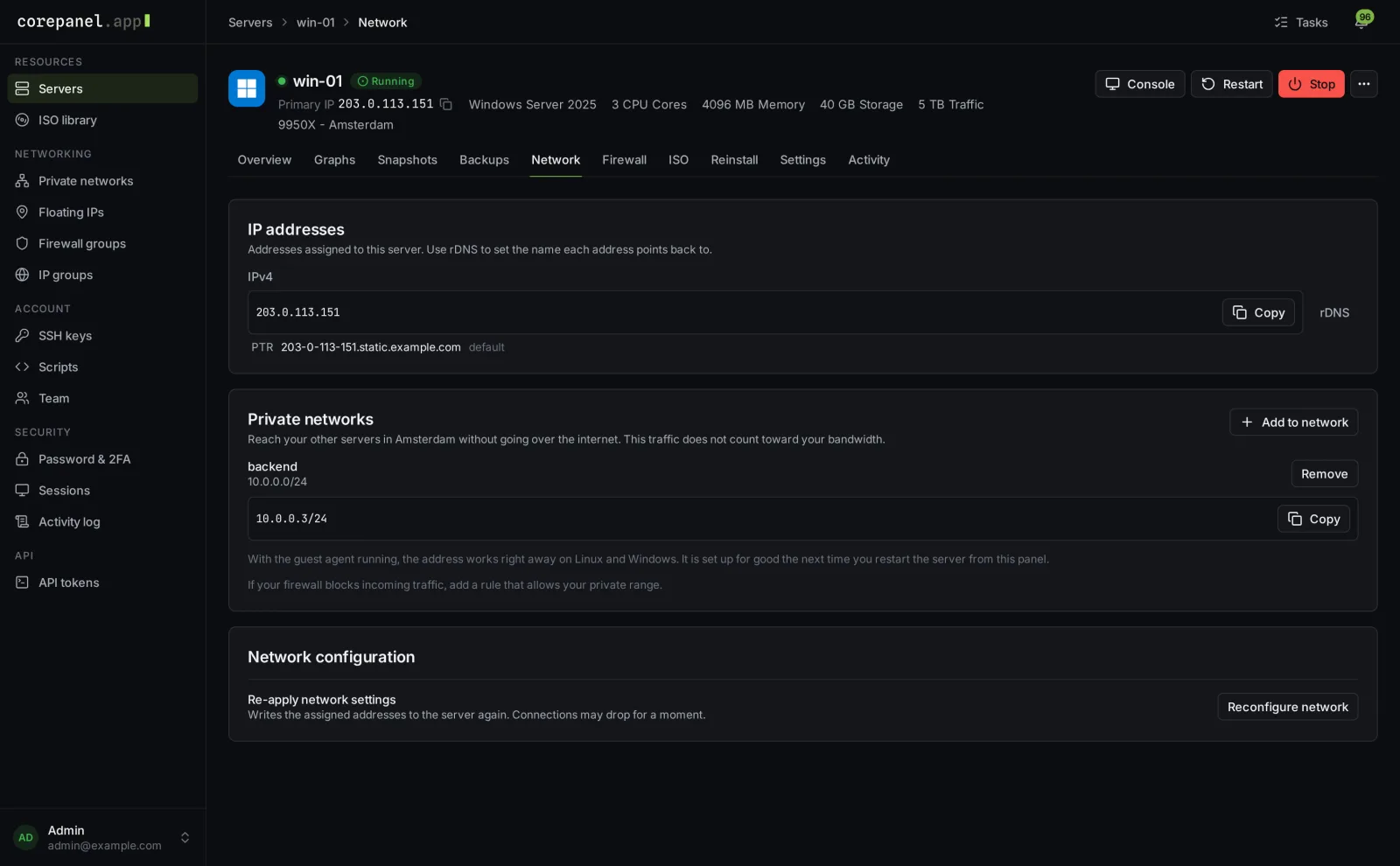
Customers create their own private networks and connect their servers to them. Private traffic never touches the internet and never counts toward their bandwidth.
Turning them on
Private networking is set up per location, under Admin → Connections → (a connection) → Private networking. Pick the type that fits your network:
| VLAN | A VLAN-aware bridge on every node, with your switch carrying the tag range you choose |
|---|---|
| Simple | A location with one hypervisor. Nothing to prepare |
| VXLAN | Several hypervisors without a shared switch. They reach each other on UDP 4789 |
Press Check hypervisors to confirm every node is ready, then Save and apply. CorePanel creates the network objects in Proxmox and never edits your nodes' own network configuration.
What customers do
- Under Networking → Private networks, choose New network with a name, a location and a private address range.
- On a server's Network tab, choose Add to network. The server gets the next free address, or one they pick.
With the guest agent running, the address works right away on Linux and Windows. Servers installed from an ISO are shown how to set the address themselves. How many networks an account and a server may have is set under Admin → Settings → Compute.
Floating IPs
A floating IP is an address that belongs to the customer rather than to one server. They move it between their servers in the same location in seconds, for failovers and migrations without a DNS change.
- Create a pool for the location under Admin → IPAM and tick Floating. Floating pools are never used for new servers.
- Hand addresses out yourself under Admin → Floating IPs → Hand out, or let customers take their own by setting how many each account may have under Admin → Settings → Compute.
- Customers manage them under Networking → Floating IPs: attach, move, detach, label and set reverse DNS.
When a server is deleted, its floating IPs stay with the account.
Reverse DNS
Connect your DNS provider under Admin → Settings → DNS → Reverse DNS. CorePanel works with bunny.net DNS today.
- Choose bunny.net DNS and enter your API key. The reverse zones for your ranges must exist in that account.
- Set a Default PTR pattern, for example
{reverse}.static.yourbrand.com, and press Test connection. - Optionally, Import existing PTRs so the panel starts from what is already published.
Every address then gets its default name automatically. Customers change their own with the rDNS button on the server's Network tab. A name is only saved once your provider has accepted it, and a released address goes back to the default.
Firewalls
The customer's firewall
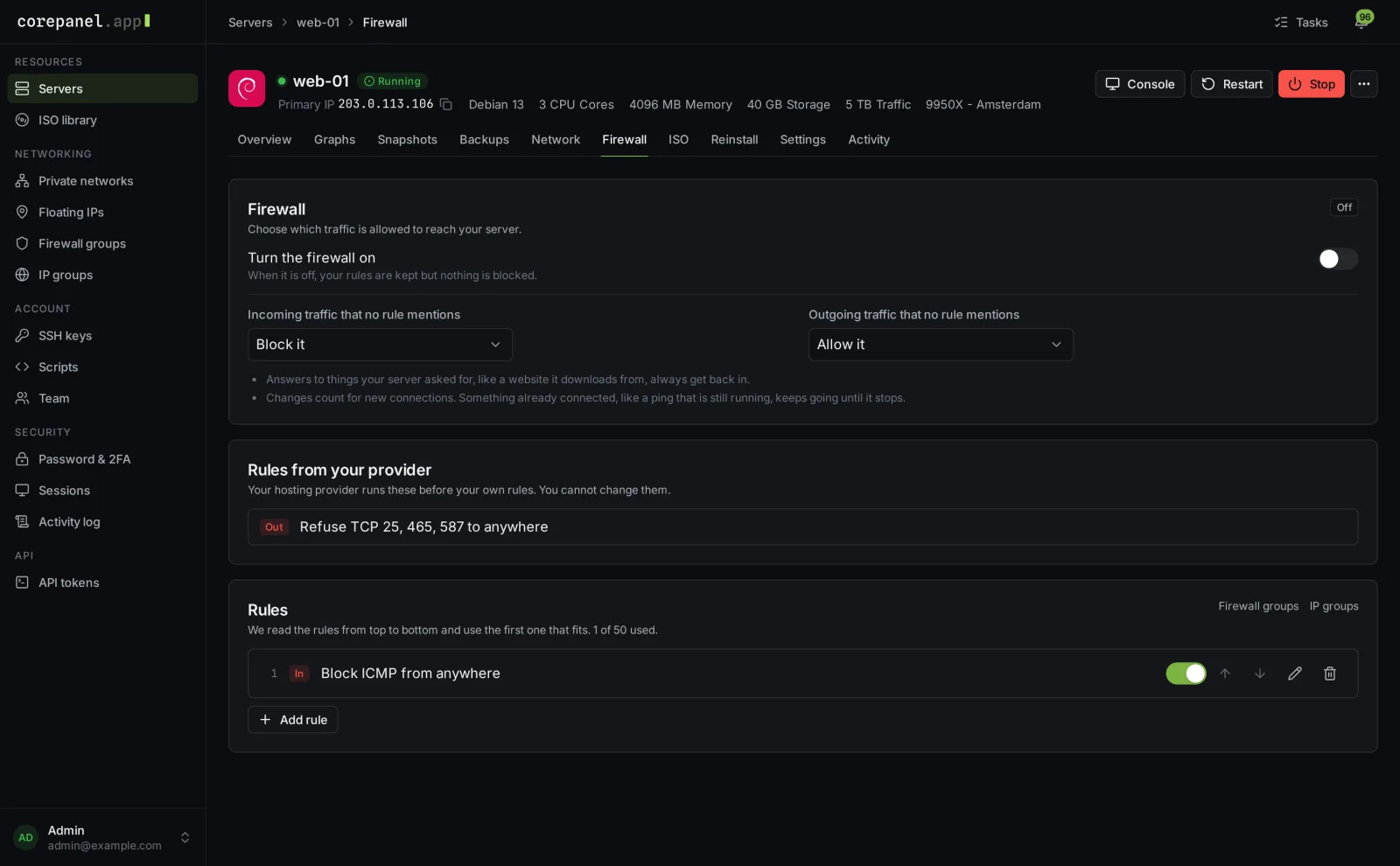
Every server has a Firewall tab where customers choose what may reach their server and what it may send. Rules run from top to bottom, and reusable Firewall groups and IP groups save them typing the same rules everywhere. The plan feature Firewall controls whether customers get the tab, and the limits on rules and groups are under Admin → Settings → Security.
Your rules for everyone
Under Admin → Firewall you keep a short list of rules that apply before any customer rule, such as the ready-made presets Block outgoing e-mail (port 25) or Block all e-mail ports. Each plan decides whether its servers get these rules, and a single server can be switched on or off. Customers see your rules on their Firewall tab, but cannot change them.
The first time CorePanel turns on the firewall for a cluster, it leaves incoming traffic allowed at the datacenter level, so you never lock yourself out of your own nodes. A firewall you already run is left exactly as it is.